How to Remove a Watermark Without Losing Image Quality
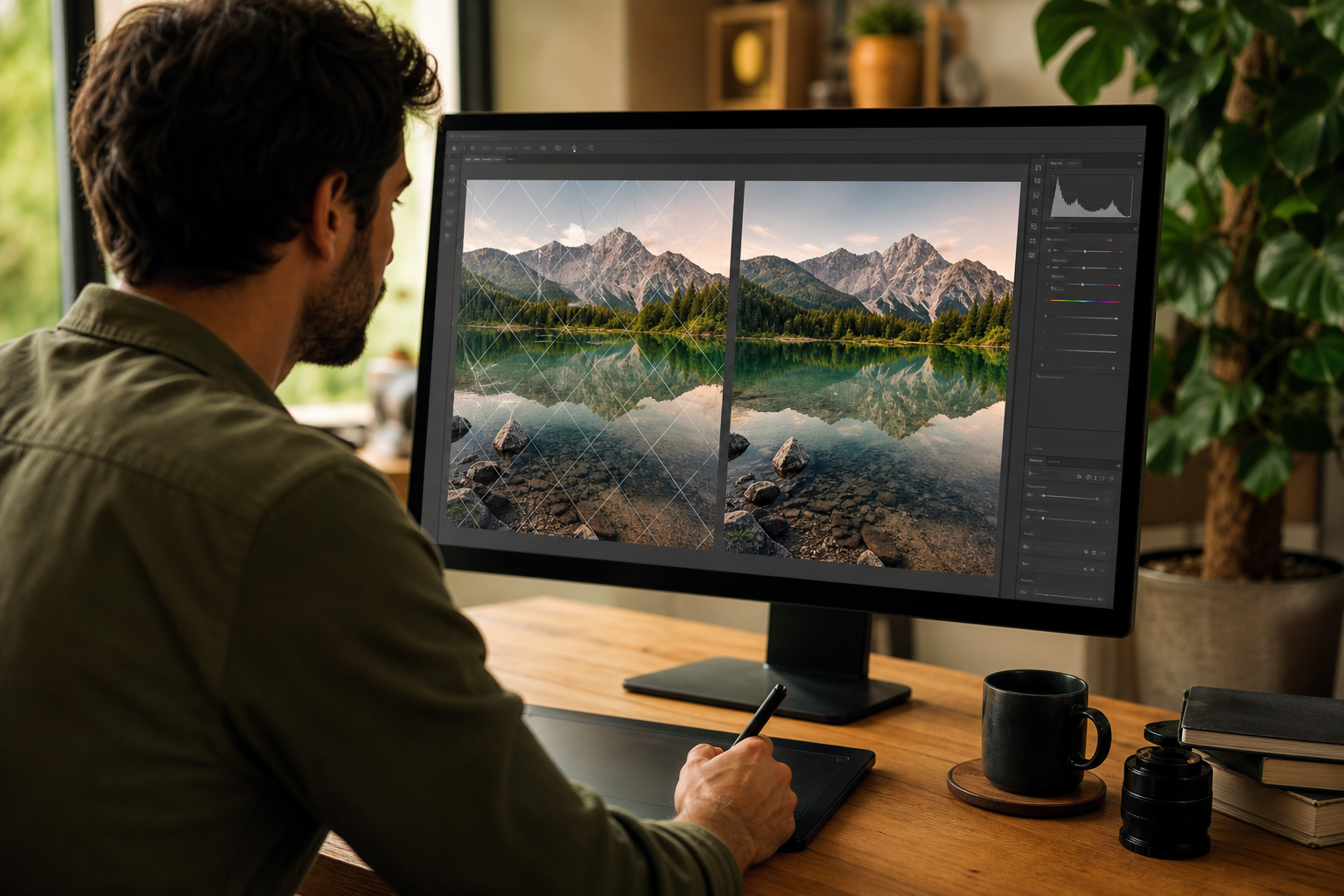
Every watermark remover on the internet promises clean results. What none of them tell you is what actually happens to your image at the pixel level — and why some removals look flawless while others leave you with a smeared mess where the watermark used to be. This guide covers the real tradeoffs between quality and removal, what causes them, and the exact steps you can take to keep your output as close to the original as possible.
First, Let's Be Clear About What 'Quality Loss' Actually Means
When people say a watermark remover damaged their image quality, they usually mean one of three distinct things — and conflating them leads to bad decisions about which method to use.
1. Pixel reconstruction artifacts. This is what happens when an AI fills the space where the watermark was. The model invents pixels it cannot actually see. If the reconstruction is poor, you get blurring, smearing, or a texture that looks slightly wrong — the kind of thing your eye catches even if you can't name it.
2. Format-induced compression damage. This is a separate problem entirely. Many online tools accept your PNG, process it, and return a JPEG compressed at 75% quality. Your image comes back noticeably worse — not because of the watermark removal itself, but because the tool quietly recompressed your file. This is so common it borders on dishonest, and almost no tool discloses it upfront.
3. Resolution downscaling. Some tools cap output at a fixed pixel dimension (say, 1500px on the long edge) regardless of what you uploaded. If you gave them a 4000×3000 image, you get back something a fraction of that size. The watermark is gone, but so is half your image data.
Understanding which of these you're dealing with changes everything about how you approach the problem. Let's go through each one.
Why AI Inpainting Sometimes Looks Wrong
Watermark removal by AI works through inpainting: you mark the region to remove, and the model reconstructs what should be underneath, based on the surrounding context. If you want to understand the mechanics more deeply, this breakdown of how AI inpainting works is worth reading first.
The quality of the reconstruction depends heavily on two variables: the complexity of the background behind the watermark, and the size of the masked area relative to the image.
Simple backgrounds reconstruct cleanly. If a watermark sits on a solid color, a gradient, a clear sky, or a wall, the AI has enough surrounding context to fill it in plausibly. The result is usually indistinguishable from the original — or at minimum, only a very close inspection would reveal anything was done.
Complex backgrounds are harder. Watermarks sitting on top of detailed textures, faces, intricate patterns, or fine text create a genuine challenge. The model must invent detailed information it cannot know. This is where artifacts appear — subtle blurring at the reconstruction boundary, repeated textures, or slightly wrong color gradients.
Large masked areas multiply the risk. A thin diagonal watermark across the full image is not the same problem as a small corner logo. Large removal zones mean the model is inventing large amounts of pixel data. More invention = more opportunity for visible error. If you've ever seen a watermark removal where the center of the image looks slightly dreamlike or smeared, this is why.
The honest answer is that no AI inpainting tool achieves perfect reconstruction in all conditions. The realistic goal is minimizing the visible difference — and the strategies below get you most of the way there.
The Format Problem Nobody Talks About
Here is a thing that happens constantly in this space, and that almost every "best watermark removers" roundup article conveniently ignores: tools that silently degrade your file format on export.
You upload a lossless PNG. The tool processes it. You download a JPEG at an undisclosed compression level. Your image may look fine on a thumbnail but falls apart the moment you zoom in or try to print it. This isn't a bug — it's often a deliberate design decision to reduce server costs and processing time. You're paying the price in image quality.
What to watch for:
- Check the file extension of what you download. If you uploaded a PNG and got back a JPEG, that's a format change that introduces irreversible compression artifacts regardless of how good the watermark removal was.
- Check the file size. A 3MB PNG that comes back as a 300KB JPEG has been compressed heavily. The numbers don't lie even when the tool's marketing does.
- Check the dimensions. Open the downloaded file and check its pixel dimensions against what you uploaded. If they don't match, the tool downscaled your image.
Some tools in the space that operate at the premium end — or tools that are simply more transparent — will return the same format you uploaded, or explicitly offer format options. This is a meaningful differentiator that most "top 10" lists (the ones written by people who clearly never actually tested anything) completely fail to mention.
When evaluating any watermark removal tool, here's a practical framework for actually measuring output quality rather than taking marketing copy at face value.
How to Maximize Quality When Removing a Watermark
None of this is hopeless. There are concrete practices that consistently produce better results, and they're not complicated.
1. Work at the original resolution, not a compressed copy
Start from the highest-quality version of the image you have. If you have both a 4K original and a compressed preview, use the original. The AI has more pixel context to work with at higher resolution, and the reconstruction will be proportionally more accurate. Never do watermark removal on an image that has already been JPEG-compressed multiple times — the artifacts stack.
2. Draw your mask precisely
Over-masking is one of the most consistent causes of bad results. If the watermark is a small logo in the corner, mask only the logo — not a generous region around it. Every extra pixel you include in the mask is a pixel the AI has to invent rather than preserve. Tight, accurate masking gives the model a smaller reconstruction challenge and preserves more original image data.
Under-masking, on the other hand, leaves visible watermark remnants that look even worse than the original because the surrounding context is now partially reconstructed. Take the time to trace the actual boundary.
3. Handle repeating watermarks differently
Diagonal text watermarks that repeat across the full image (the kind stock photo sites use) are in a different category of difficulty. They cover a large area and often overlap complex image regions. For these, the approach of masking the entire pattern at once often produces worse results than masking individual instances sequentially, letting the AI work on smaller zones with more surrounding context available each time.
If you've struggled with this type — and it's the type that causes the most frustration — the guide on why watermark removers fail covers the specific failure modes and what actually helps.
4. Don't recompress unnecessarily
After the watermark is removed, save in a lossless format (PNG) if you're going to do any further editing. Only convert to JPEG as the final step, and only if JPEG is specifically required for your use case. Every JPEG save discards image information that cannot be recovered. Two JPEG saves at 80% quality is not the same as one save at 64% — it's worse, because the artifacts compound differently each time.
5. For critical work, consider patching rather than removing
If the watermark sits on a region of the image that is genuinely important — a face, a key product, a specific texture — consider whether the goal is really to remove it or to restore the original. These are different problems. For restoration, you sometimes get better results by working in sections and reviewing each reconstruction before moving on, rather than committing to a single full-image pass.
The Watermark Type Changes Everything
A key point that gets flattened in most articles: not all watermarks behave the same way, and the best approach depends entirely on what you're dealing with.
Semi-transparent text overlays (the most common type on stock photo sites) are generally the easiest to handle. Because they're partially transparent, color information from the original image bleeds through. The AI has partial data to work with rather than zero. Results are usually good.
Opaque solid-color watermarks (white boxes, black bars, solid logos) are harder. There is zero original pixel data underneath. The AI is reconstructing entirely from surrounding context. Quality of the result depends almost entirely on the complexity of what's behind it.
Diagonal full-image repeating patterns (Getty, Shutterstock, iStock — see guides for Shutterstock, Getty, and iStock specifically) are the hardest case. Large coverage area, multiple overlapping instances, often covering faces or complex textures. These require more careful masking and more tolerance for imperfect results in complex zones.
Corner logos (Canva, Freepik, Pexels — see the Canva, Freepik, and Pexels guides) are usually the cleanest case. Small area, often on a relatively simple background region. These almost always come back clean with a well-executed mask.
AI-generated image watermarks (Midjourney, DALL-E, Gemini) tend to be simpler in structure but sometimes appear in corners that overlap important image content. See the specific guides for Midjourney, DALL-E, and Gemini watermarks if that's your use case.
What the Industry Gets Wrong (And Why You Should Care)
Let's be direct about something that most comparison articles refuse to say: a significant portion of "AI watermark remover" tools on the market today are wrappers around the same underlying models, with different branding, different pricing, and identical output quality. The differentiation is almost entirely in the UX and export handling — not in the actual AI.
What this means practically: the tool that charges you €20/month and the free tool using the same underlying model will produce near-identical reconstruction quality. The difference is whether the free tool compresses your output or caps your resolution. Those are the variables that actually affect your perceived quality.
When reading any comparison of watermark removal tools — including roundups like this one — ask yourself: did the person writing this actually export a full-resolution PNG from each tool and compare pixel-level output? Or did they look at a 600px preview thumbnail and declare a winner? The answer, in the vast majority of cases, is the thumbnail. The thumbnail always looks fine. That's not the test that matters.
The test that matters is: what do I get back at original resolution, in what format, at what file size? Run that test before you trust any conclusion about tool quality, including conclusions on this site.
A Realistic Expectation Framework
To close, here's a blunt summary of what quality outcomes you can realistically expect, based on watermark type and background complexity:
- Small corner logo, simple background: Effectively undetectable after removal. This is the ideal case and it works extremely well.
- Semi-transparent text, uniform background: Very good results in most cases. Minor artifacts possible at reconstruction boundary, usually invisible at normal viewing distance.
- Semi-transparent text, complex textured background: Good results in most areas; mild artifacts possible in high-detail zones. Worth checking the output at 100% zoom.
- Opaque watermark, simple background: Good reconstruction. The AI invents pixels but has enough surrounding context to do it plausibly.
- Opaque watermark, complex background (face, detailed object): Reconstruction quality is genuinely unpredictable. Plan to review carefully. May need iterative masking or manual touch-up afterward.
- Full-image repeating diagonal pattern: This is the hardest case. Expect some artifact zones, particularly where the watermark crosses complex image areas. Results improve with careful per-instance masking rather than a single large mask.
No tool — paid, free, AI-powered, or otherwise — produces perfect results in the last two cases. Anyone who tells you differently is selling you something. The goal is minimizing the visible difference, not achieving mathematical perfection.
If you're working on a project where the result will be printed large-format or used as a hero image at high resolution, factor in extra time for review and, if necessary, manual touch-up in a raster editor for any artifacts the AI leaves behind. That's not a failure of the AI — it's just an honest accounting of what the technology does and doesn't guarantee.
FAQ
Does removing a watermark always reduce image quality?
Not always, but it depends on two separate things: the quality of the AI reconstruction and the export handling of the tool. If the AI reconstructs the masked area well and the tool returns your file at original resolution and in a lossless format, quality loss can be imperceptible. The risk is higher when the watermark covers complex image areas, or when the tool silently downgrades your output format to JPEG on export.
Will the removed area look blurry or smeared?
It can, but it's not inevitable. Blurring and smearing are symptoms of poor AI reconstruction, usually in areas where the background behind the watermark is complex (detailed textures, faces, fine patterns). On simple backgrounds, reconstruction is usually clean. Precision masking — masking only the watermark itself, not a generous area around it — reduces the risk significantly.
Why does my image come back smaller or in a different format?
Many watermark removal tools cap output resolution or convert your file to JPEG during processing. This is a deliberate technical choice by the tool, not a side effect of the watermark removal itself. Always check the pixel dimensions and file format of what you download and compare to what you uploaded. A returned JPEG when you uploaded a PNG is a red flag.
Is there a lossless way to remove a watermark?
Mathematically lossless removal is impossible when the watermark covers original image data — those pixels are gone and must be reconstructed. What you can achieve is reconstruction quality that is visually indistinguishable from the original, particularly on simpler backgrounds. 'Lossless' in practice means: working at original resolution, keeping lossless file format, and using precise masking. The removal itself is always a reconstruction.
Does image resolution affect how well a watermark can be removed?
Yes, significantly. Higher resolution images give the AI more context pixels surrounding the watermark area, which generally improves reconstruction quality. Additionally, at higher resolution, small reconstruction imperfections are proportionally smaller relative to the total image — making them less visible. Always work from the highest-resolution source you have.
Should I remove a watermark before or after other edits?
Remove the watermark first, from the cleanest original you have. Applying contrast, color grading, or sharpening before removal can make the watermark itself harder to remove and can amplify any reconstruction artifacts. After removal, do your editing on the clean output.
Can I remove a watermark from a JPEG without making quality worse?
You can, but JPEG images are already compressed and have existing artifacts. The AI reconstruction will work from that compressed data, which is a slight disadvantage compared to working from a PNG. More importantly: make sure the tool returns a PNG or high-quality JPEG rather than re-compressing the file aggressively. Double JPEG compression stacks badly and is visible even at normal viewing distances.
Try WatermarkOff on Your Image — Free, No Account Required
WatermarkOff uses AI inpainting to remove visible watermarks — logos, text overlays, corner marks — directly in your browser. Draw a mask over the watermark, let the AI reconstruct what's underneath, and download your result. It works best on visual watermarks with clear boundaries. No subscription, no hidden compression on export.
Try WatermarkOff free