How to Remove a Watermark on Android (Without Installing Sketchy Apps)
Every Android guide on watermark removal I've seen does the same thing: lists five apps from the Play Store, none of which they've actually tested, and calls it a day. This one is different. I'm going to tell you what actually works on Android in 2025, what to avoid and why, and how to remove a watermark from your photo without handing your image to some mystery app from a developer with zero reviews.
First, Let's Be Clear About What Kind of Watermark We're Talking About
The word "watermark" covers very different things, and this distinction matters before you waste twenty minutes trying the wrong approach.
A visual watermark is what most people mean: a logo, a semi-transparent text overlay, a repeated pattern stamped across the image — the kind you see on stock photo previews from Shutterstock, Getty Images, or Canva. This is a pixel-level modification to the image itself. AI can work with that.
An invisible watermark is something else entirely — a cryptographic signature embedded in the metadata or pixel structure of the image, like Google's SynthID or C2PA Content Credentials. You can't see it, and you can't remove it with any visual editing tool, on Android or anywhere else. If you're trying to strip that kind of signature, this article won't help you — and frankly, neither will any app that claims it can.
This guide covers visual watermarks only. If your image has a visible logo, text, or semi-transparent overlay you want to erase, read on.
Why Most Android Apps for Watermark Removal Are a Waste of Time
Let me save you thirty minutes of Play Store browsing.
The vast majority of apps marketed as "watermark removers" on Android fall into one of three categories:
- Smear tools: They blur, smudge, or clone-stamp over the watermark using basic algorithms that were already outdated in 2018. The result looks like someone dragged a wet finger across your image. Technically, the watermark is gone. Practically, it looks worse than before.
- Freemium traps: The app works — but only on images smaller than 500px, with a visible ad banner in the output, unless you pay $9.99/month. You discover this after uploading your image and getting excited.
- Data harvesters: No transparent privacy policy, no clear information about where your image goes after processing. Some of these apps are based in jurisdictions with zero data protection. You upload a business screenshot or a personal photo, and you have genuinely no idea what happens to it next.
I'm not being paranoid. The Play Store has a notoriously inconsistent vetting process for utility apps in this category. The ratings are gamed, the before/after previews in the screenshots are cherry-picked, and the download counts mean nothing when you can buy installs wholesale.
The honest answer in 2025 is: you don't need an app for this. Your Android phone has a full web browser. Use that instead.
The Method That Actually Works: Browser-Based AI on Android
WatermarkOff runs entirely in your browser. That means Chrome on Android, Firefox, Samsung Internet — whatever you prefer. No install, no account required, no mystery destination for your image file.
Here's the exact process on Android:
- Open Chrome (or your preferred browser) and go to WatermarkOff.net.
- Tap Upload Image. Your Android file picker opens — you can grab from your gallery, Google Photos, Google Drive, or your Downloads folder.
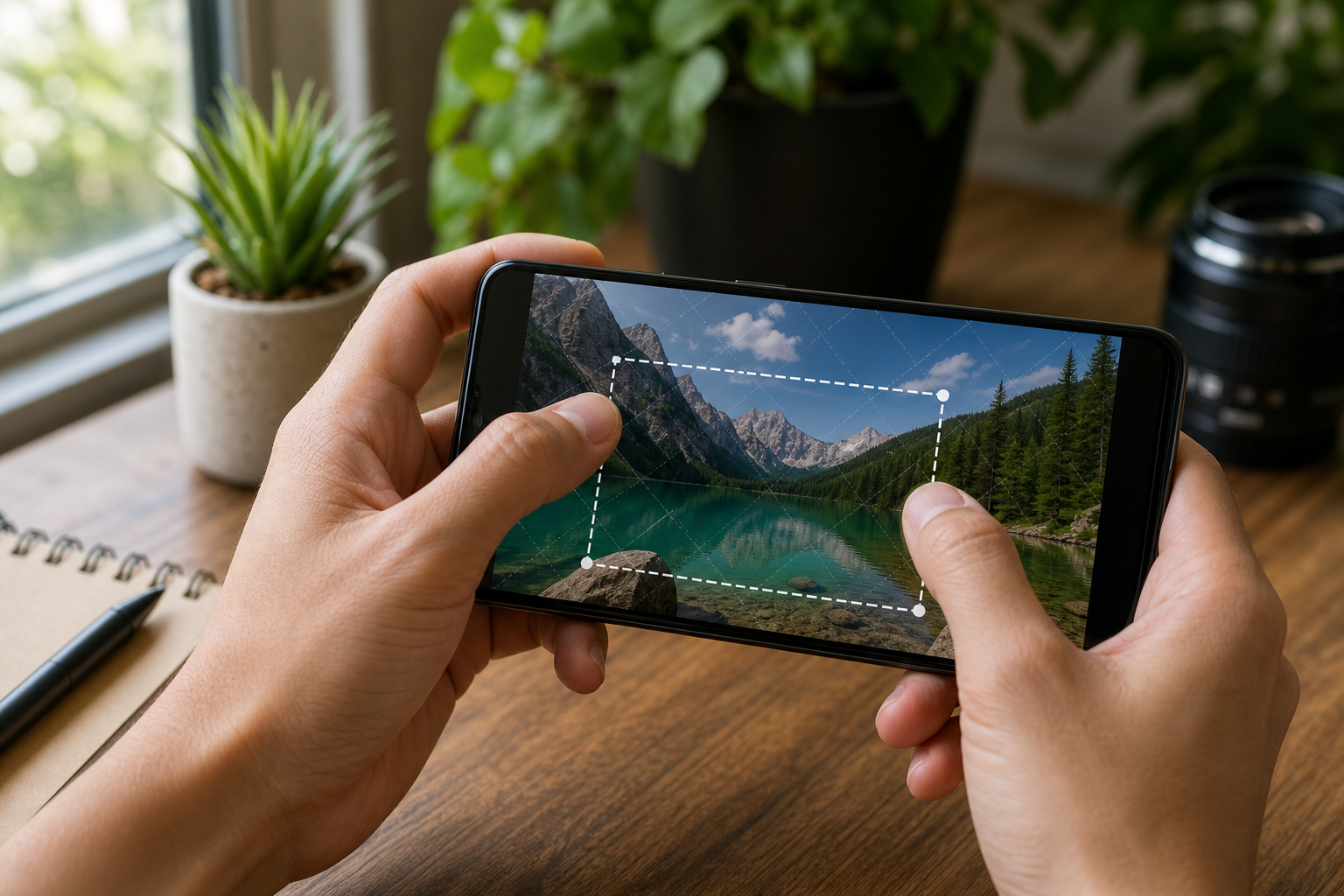
- Once the image loads, use your finger to draw a selection around the watermark. The interface is touch-optimized: pinch to zoom, drag to pan, and draw the selection box over the area you want to remove. Take your time here — a slightly loose selection usually gives better results than a tight one that clips the edges of the watermark.
- Tap Remove Watermark. The AI inpainting process runs server-side (your phone doesn't need to be powerful — it's not doing the heavy lifting). You'll typically have a result in under ten seconds.
- Review the result. If the area looks odd — which can happen with complex backgrounds — you can redraw the selection and try again. Multiple passes often help on detailed backgrounds.
- Download the processed image directly to your phone's storage.
The whole process takes about two minutes on a stable Wi-Fi or 4G connection. It works the same on a $150 budget Android as it does on a flagship.
Getting a Good Result: What to Do Differently on a Phone Screen
The main challenge on mobile isn't the tool — it's precision. Phone screens are smaller, your finger covers more of the image than a cursor would, and it's easy to make an imprecise selection that ruins the output. A few things that actually help:
Zoom in before selecting
Pinch to zoom in on the watermark before you draw your selection. The closer you are to the watermark, the more accurate your finger-drawn selection will be. This single habit fixes maybe 60% of the "the result looks weird" complaints I've seen.
Include a small margin around the watermark
The AI works by analyzing the surrounding pixels to reconstruct what should be under the watermark. If your selection cuts right to the edge of the text or logo, the model has less context to work with. Give it a border of 5–10% extra around the visible mark.
Avoid selecting over very complex areas
AI inpainting works best when the background behind the watermark is relatively consistent — a sky, a plain wall, a gradient, a simple texture. If the watermark sits directly over a face, detailed text, or an intricate pattern, the reconstruction will be imperfect regardless of which tool you use. That's not an Android limitation; it's a fundamental constraint of how inpainting works. If you want to understand the mechanics, this explanation of how AI inpainting works covers it without the marketing fluff.
On unstable connections, wait before tapping Download
Mobile connections drop. If you're on a shaky 3G or a congested public Wi-Fi, give the result page a full second to load before tapping Download — otherwise you may get a partial file. Not a WatermarkOff-specific issue, just mobile reality.
What About Google's Own Tools? (Galaxy AI, Google Photos Magic Eraser)
Fair question. Android phones increasingly ship with built-in AI editing features, so it's worth being honest about what they can and can't do.
Google Photos Magic Eraser
Magic Eraser is genuinely good for removing small distracting objects from photos — a trash can in the background, a photobomber, a power line. For watermarks specifically, results are mixed. It works reasonably well on simple, small text watermarks over clean backgrounds. It struggles with large semi-transparent overlays and tends to produce visible smearing on repeating patterns. It also requires a Google One subscription for the full version, which is a detail conveniently buried in most reviews.
Samsung Galaxy AI (Generative Edit)
Samsung's Generative Edit — available on S24 series and newer — is a legitimately capable inpainting tool built into the Samsung Gallery app. For users who have it, it's worth trying first on simple watermarks. The output quality is competitive. The limitation is obvious: it's Samsung-only, and it requires a reasonably recent flagship. If you have it and your watermark is simple, try it. If it doesn't work cleanly, WatermarkOff handles the more stubborn cases.
Pixel's Magic Editor
Google's Magic Editor (Pixel 8 and newer) is similar in capability to Galaxy AI — impressive for object removal, inconsistent on structured text overlays like watermarks. The results depend heavily on the complexity of the background.
The honest summary: built-in tools are worth a try if you already have them. For anything more complex than a small text mark over a plain background, a dedicated AI inpainting tool will give you more control and better results.
When You're Dealing With Specific Stock Photo Watermarks
Different platforms use different watermark styles, and the complexity varies quite a bit. A few notes based on what users actually run into:
- Shutterstock uses a large diagonal semi-transparent text overlay across the entire image. This is one of the harder cases for any tool, because the watermark covers so much of the image content underneath. Results depend heavily on the complexity of what's behind it.
- Getty Images uses a similar full-image overlay. Same challenge applies.
- Canva watermarks on free-tier exports are typically a repeated small logo. These respond very well to inpainting because the covered area per mark is small and the surrounding pixels provide strong context.
- Freepik and iStock previews often have corner logos or attribution text — simpler to remove than full-image overlays.
One important legal note that most "how to remove watermarks" guides conveniently skip: the fact that a watermark can be technically removed doesn't mean you're legally clear to use the image commercially. Stock photo watermarks exist because the underlying image is licensed. If you need the image for commercial use, you need a valid license — not a removal technique. For a more detailed take on the legal side, this breakdown of AI watermark legality is worth reading.
Common Mistakes That Ruin the Result
Most failed watermark removals come down to one of these four things:
Selection too small
If your selection doesn't fully cover the watermark — including any faint shadow or edge — the AI will reconstruct content that partially overlaps the remaining mark. The result looks like a bad erase job. Select the full mark, every time, with a margin.
Trying to remove a watermark from a heavily compressed JPEG
If your source image is already heavily compressed (typical of a thumbnail-sized preview, a WhatsApp-forwarded photo, or a screenshot taken of a watermarked image rather than the original), the compression artifacts compound with the inpainting. Download the highest-resolution version available before running any removal. If you're running into consistent quality issues, this guide on watermark removal without quality loss covers the upstream steps.
Expecting perfection on complex backgrounds
If the watermark sits over a human face, a detailed architectural pattern, or intricate typography in the background image, no AI tool available today will produce a flawless result. Inpainting reconstructs plausible content — it doesn't have a time machine to retrieve what was there before. Understand the limitation before you start. This article explains the actual reasons watermark removers fail without sugarcoating it.
Using a screenshot instead of the original image
Screenshots introduce additional compression, screen-color-profile artifacts, and often reduce the effective resolution significantly. Always work from the source file when possible.
Android vs. iPhone: Is There a Real Difference?
Not for browser-based tools. WatermarkOff loads and runs identically in Chrome on Android and Safari on iOS. The touch interface responds the same way, the processing happens server-side, and the download is just a standard file save to your device.
The difference is in the built-in tools: iOS has had more mature AI photo editing features for longer (Clean Up in the Photos app is genuinely good). Android is catching up fast with Galaxy AI and Pixel's Magic Editor, but availability is fragmented across manufacturers.
If you want the full iPhone-side comparison, the iPhone watermark removal guide covers it in the same detail as this one.
For most Android users without a flagship from 2023 or newer, the built-in AI options simply aren't available. Browser-based tools are the practical equalizer — same capability regardless of your hardware.
FAQ
Can I remove a watermark on Android without installing any app?
Yes. WatermarkOff runs entirely in your mobile browser — Chrome, Firefox, Samsung Internet. You upload the image, draw a selection over the watermark, and download the result. No app install, no account, no Play Store required.
Does WatermarkOff work on Android phones with older Android versions?
It works on any Android device running a modern browser (Chrome 90+, Firefox 88+). The processing happens on the server, so your phone's processing power doesn't matter. A stable internet connection is the main requirement.
Will Google Photos Magic Eraser remove a watermark?
For small, simple watermarks over clean backgrounds, it can work reasonably well. For large semi-transparent overlays that cover most of the image — typical of Shutterstock or Getty previews — it struggles and tends to produce visible artifacts. Magic Eraser also requires Google One for full access on most devices.
Is it legal to remove a watermark from a stock photo?
Removing a watermark from a stock photo preview doesn't grant you a license to use the image. The watermark signals that the image is licensed content. If you need it for commercial use, you need to purchase a proper license. Removing the mark is technically possible; using the image commercially without a license is a different matter entirely and could expose you to copyright liability.
Why does the area where the watermark was look blurry or smeared?
This usually means the selection was too tight (not enough margin around the watermark), or the background behind the watermark was too complex for the AI to reconstruct cleanly. Try again with a slightly larger selection, or zoom in more before drawing it. Multiple passes on difficult areas can also help.
What if the watermark covers most of the image, like a Shutterstock preview?
Full-image diagonal overlays are the hardest case for any inpainting tool. The AI can only reconstruct plausible content based on the pixels it can see — if the watermark covers 70% of the image, there's limited information to work from. Results will vary significantly depending on the image content. For a realistic preview of what to expect in these cases, the detailed guides for specific platforms (Shutterstock, Getty) explain the limitations honestly.
Does WatermarkOff save my images after processing?
Images are processed server-side and are not stored permanently. They are used only to perform the removal and are discarded after processing. No account is required, so there's no user profile for your images to be linked to.
Can Samsung Galaxy AI or Pixel's Magic Editor replace a dedicated watermark removal tool?
For simple cases on those specific devices, yes — they can. Samsung's Generative Edit and Google's Magic Editor are genuinely capable. But they're device-specific, not available to most Android users, and they show the same limitations as any inpainting tool on complex backgrounds. For anyone who doesn't have a recent Samsung or Pixel flagship, a browser-based tool is the practical alternative.
Remove That Watermark Right Now — From Your Android Browser
No app to install. No account to create. Upload your image, draw over the watermark, download the result. Works on any Android device with a browser and a decent connection.
Try WatermarkOff free